
Using the desk
build, test, run.
The desk at /app has three workspaces, Build, Test and Run, and a guided flow across the top: Chart → Rules → Robustness → Paper → Live. This page explains each step so you can support your users.
01The guided flow
The strip at the top shows where the user is. Live stays locked until the rules reach the minimum robustness grade you set in the admin (default C). Paper runs are always available.
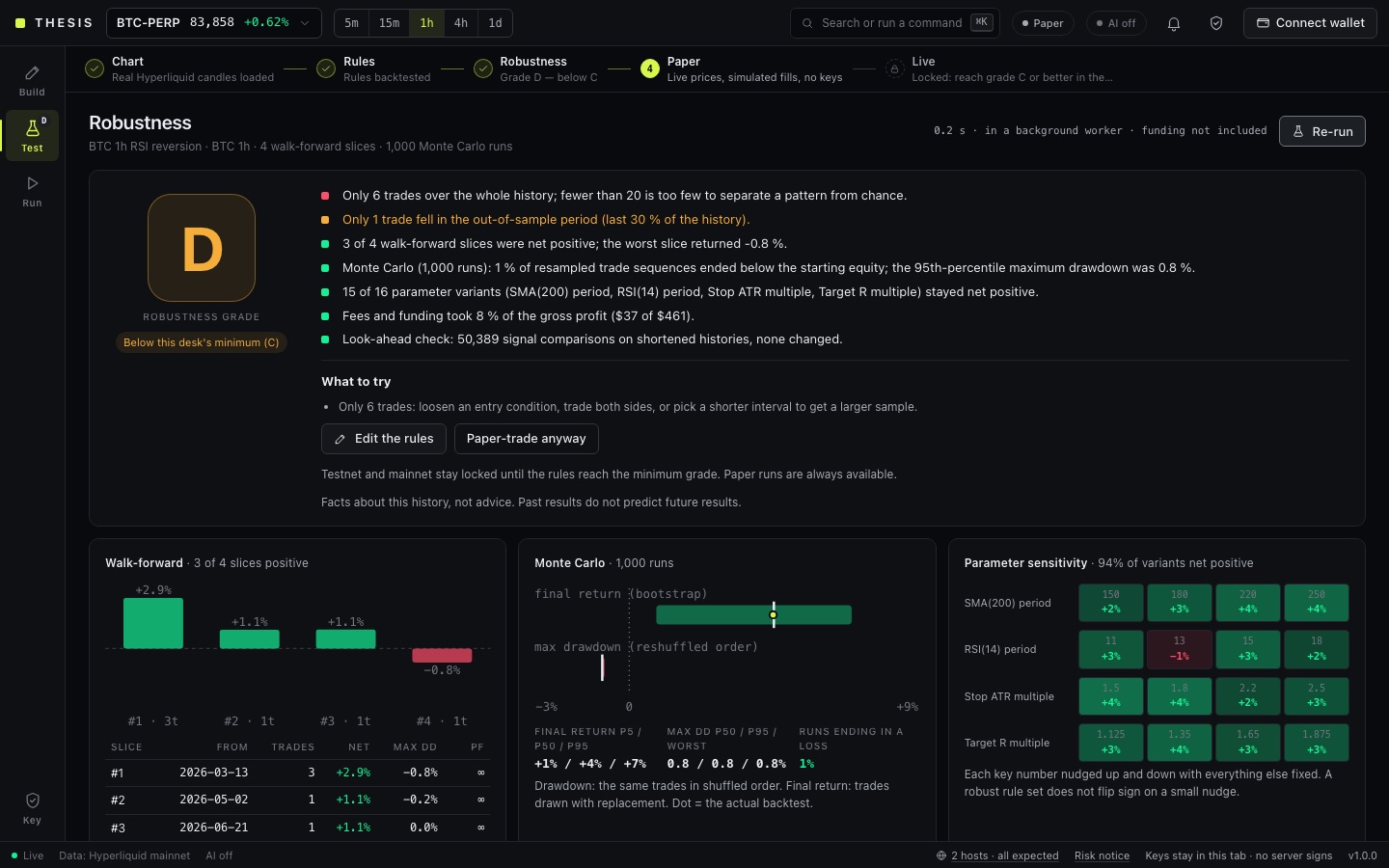
| Area | What it does |
|---|---|
| Top bar | Market picker (every listed Hyperliquid perp, or the list you allow), interval (5m, 15m, 1h, 4h, 1d by default), command search (⌘K / Ctrl+K), run mode, AI status, alerts bell, key panel and Connect wallet. |
| Status bar | Data source, AI status, the network log (N hosts · all expected), the risk notice and the version. |
02Build: rules from a chart
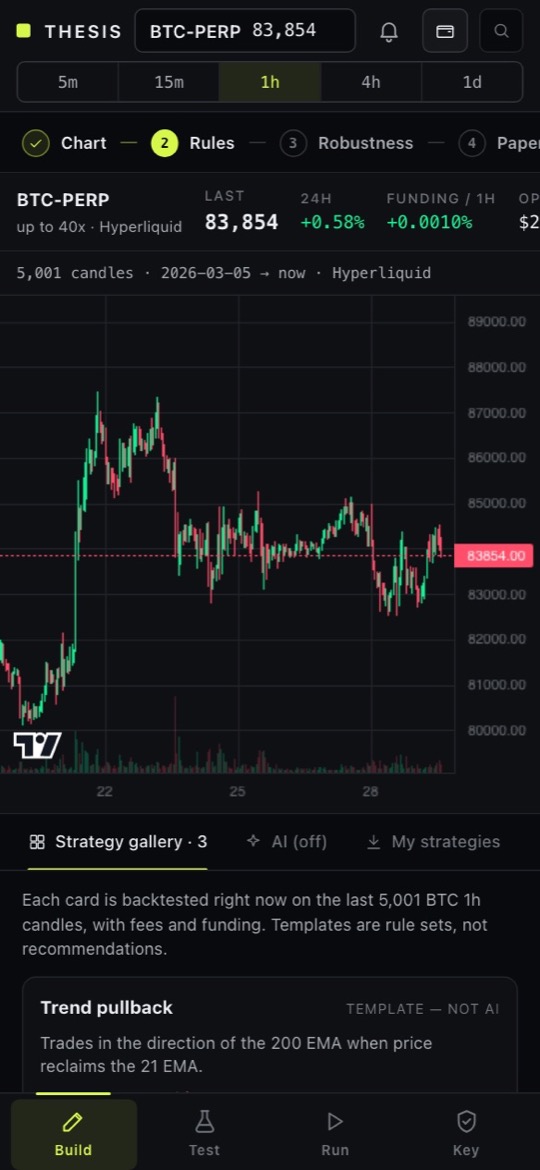
- Strategy gallery: the templates you enable (trend pullback, range breakout, RSI mean reversion), each backtested live on the loaded market. They are labelled Template — not AI.
- Read a chart with AI: the AI reads the chart on screen plus the exact candles behind it, or a screenshot, and writes a rule set. Works only when AI is on and a key is set. Levels it reads are checked against real swing highs and lows and marked as found, not near any swing, or outside the price range.
- Rules editor: Visual (conditions from dropdowns, long and short sides, stop, target, risk) or JSON. Every rule set is validated against a strict schema; natural-language edits by AI are shown as a diff.
- My strategies: saved rule sets in the browser; export, and share as a link (the rules travel in the URL after
#, which browsers never send to a server).
03Test: backtest and robustness lab
The backtest runs bar by bar on the most recent candles Hyperliquid serves in one request, about 5,000 (the chart header shows the exact count, for example 5,001 candles):
- Signals are read on closed candles and filled at the next open, with slippage.
- When a candle touches both stop and target, the stop is assumed to fill first.
- Taker fee, your builder fee (if on) and slippage are charged on every fill; real hourly Hyperliquid funding is charged while a position is open.
- Older 70 % vs recent 30 % (out-of-sample), with buy-and-hold shown next to it.
The robustness lab runs in a background worker: walk-forward slices, Monte Carlo (reshuffled drawdown and bootstrapped returns), parameter sensitivity and a look-ahead check. It gives a grade from A to F with plain reasons and a What to try list. It states facts about history; it does not recommend trades.
04Run: paper, testnet, mainnet
- PaperLive prices, simulated fills, no wallet and no keys. The starting balance is set in the admin.
- Connect walletFor testnet or mainnet. The browser wallet signs Authorise a trading key (Hyperliquid
approveAgent) and, if you turned on a builder fee, Approve the desk fee (approveBuilderFee). - AcknowledgeThe user ticks four boxes: they can lose the money they trade and a backtest does not predict results; the restricted-jurisdiction text you set in the admin; rules run only while the tab stays open; each entry carries a stop and a target that rest on Hyperliquid. Mainnet also shows Real money. and needs typing
<COIN> LIVE(for exampleBTC LIVE) before Start live on mainnet becomes active. - RunThe rules are evaluated once per closed candle by the same engine the backtest used. Each entry is an IOC limit order with a worst-price cap, sent together with its stop and target in one signed action; they rest on Hyperliquid.
Mainnet is off on a fresh install, so users can only paper-trade and use testnet. You switch it on in Admin → Trading → Mainnet trading. From then on, a user who passes the lab grade, connects a wallet and confirms can start a run that places real orders on Hyperliquid with their own funds, automatically, on each closed candle. Losses are possible. Test the whole path on testnet yourself first.
Testnet or mainnet: what happens in the user's tab
- The wallet connects in the browser; its key never leaves the wallet.
- Authorise creates a fresh agent key inside the tab and asks the wallet to sign Hyperliquid's
approveAgentfor the chosen network, valid for the days you set (default 7). The agent can place and cancel orders; Hyperliquid does not let it withdraw or send funds elsewhere. - The agent key lives in the tab's memory. If the user ticks Keep it if I reload this tab, it is kept in
sessionStorageuntil the tab closes. Forget key in this tab removes it. - Orders go from the tab straight to Hyperliquid (testnet:
api.hyperliquid-testnet.xyz; mainnet:api.hyperliquid.xyz). Your server is not in the path. - Testnet uses Hyperliquid's test funds; the user needs a testnet account with test USDC. Mainnet uses real USDC in the user's Hyperliquid account.
Rules are evaluated only while the desk tab is open. Stops and targets already sent rest on Hyperliquid, so an open position stays protected if the tab closes, but no new decisions are made. One market and one position per run.
| Control | What it does |
|---|---|
| Key panel (Key / shield icon) | Agent address, scope (can place and cancel orders, cannot withdraw), expiry, Forget key in this tab, and the live network log of every host the tab contacted. |
| Risk panel | Daily loss used, leverage, liquidation distance, the limits the run enforces, kill-switch state. |
| Kill switch — flatten now | Stops the run, cancels this desk's orders (recognised by their client-order-id prefix) and closes the position. |
05Journal, drift and alerts
- Journal: every paper and live trade, with what the engine expected at decision time next to what happened (fill, slippage, fees and funding — read from the account's Hyperliquid fills for live runs). Stored in the browser; Export CSV.
- Drift warning: closed trades are compared with the lab's Monte Carlo range for the same rules. It warns; it never changes or stops a run.
- Alerts: in-app list, optional browser notifications, and Telegram through the user's own bot (token from
@BotFather). The browser sends straight toapi.telegram.org; your server never sees the token. Alerts never place or cancel orders.